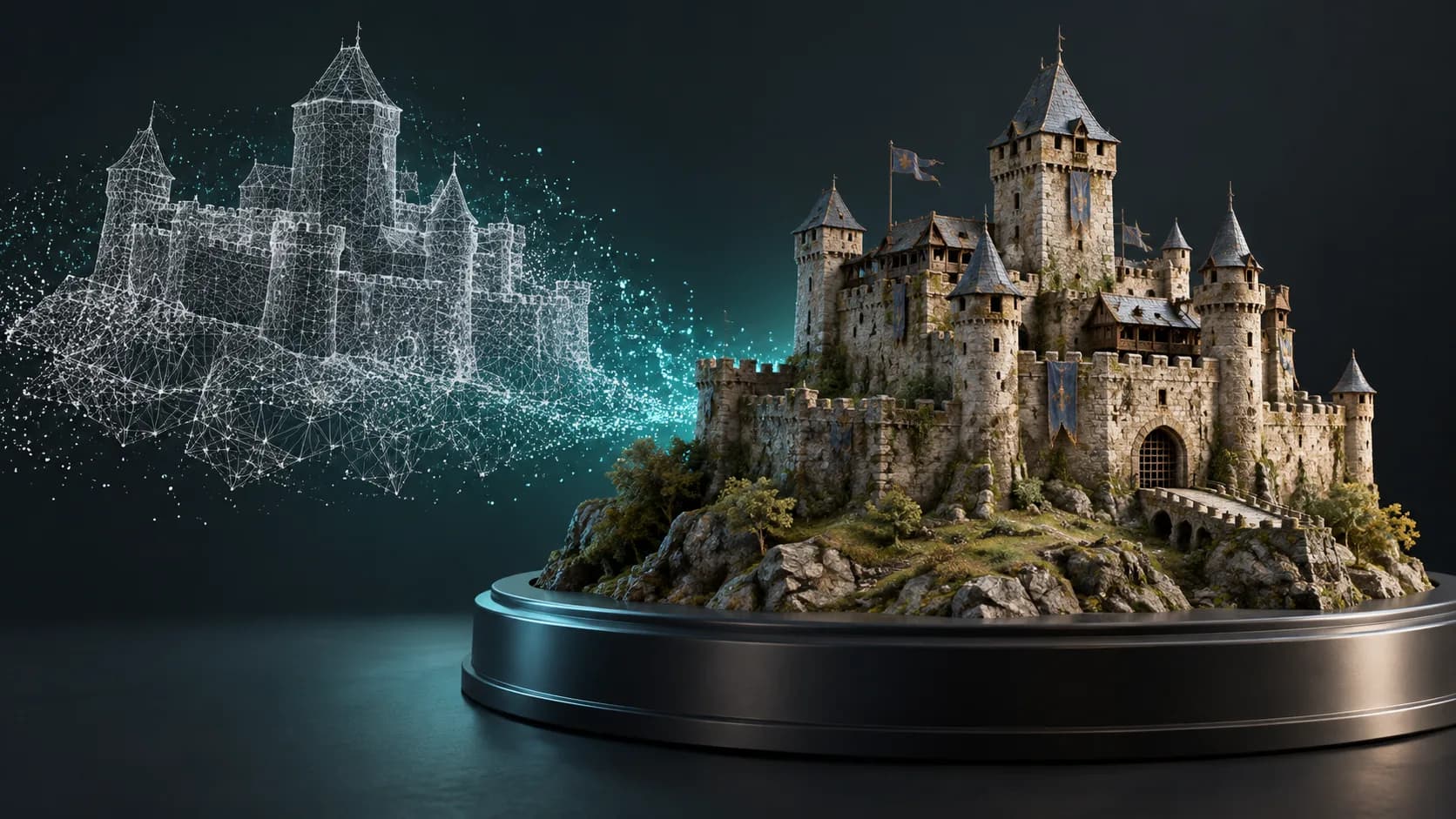
2025/11/06
How to Import and Enhance 3D Models with AI - Complete Guide 2025 | Magic 3D
Learn how to import your 3D models (GLB, OBJ, FBX, STL) and enhance them with AI-powered textures, style effects, and format conversion. Step-by-step tutorial with screenshots.
How to Import and Enhance 3D Models with AI - Complete Guide 2025
Transform your existing 3D models with AI-powered enhancement tools. This comprehensive guide shows you how to import 3D models and apply textures, style effects, format conversion, and generate new variations - all in one powerful platform.
Why Import and Enhance 3D Models?
Common Use Cases
| Scenario | Solution |
|---|---|
| Plain models need textures | AI texture generation with text prompts |
| Wrong file format | Convert between OBJ, STL, FBX, GLTF, USDZ, 3MF |
| Want creative styles | Apply Lego, Voxel, or Voronoi effects |
| Need model variations | Generate new models based on imported ones |
| Scale adjustment needed | Precise scaling from 0.1x to 10x |
Quick Start: Import and Enhance in 3 Steps
Step 1: Upload Your 3D Model
- Supported formats: GLB, OBJ, FBX, STL
- Max file size: 100MB
- Drag & drop or click to upload
- Processing time: 10-30 seconds
Step 2: Choose Enhancement Type
- Texture: Add AI-generated textures with prompts
- Effects: Apply style transformations (Lego, Voxel, Voronoi) or format conversion
- Generate: Create new models based on imported ones
Step 3: Download Enhanced Model
- Multiple formats: Download in GLB, OBJ, STL, FBX, GLTF, USDZ, 3MF
- High quality: Preserves original geometry
- Instant preview: See results before downloading
Part 1: Importing Your 3D Model
Supported File Formats
Upload Formats:
- ✅ GLB (glTF Binary) - Web, AR, VR applications
- ✅ OBJ - Universal 3D format, widely compatible
- ✅ FBX - Game engines, animation software
- ✅ STL - 3D printing standard
File Requirements
- Maximum file size: 100MB
- Geometry: Triangle meshes
- Textures: Embedded or external (optional)
- File integrity: Valid, non-corrupted files
Step-by-Step Import Process
1. Access the Model Import Tab
- Navigate to the 3D Generator page
- Click on the "Model" tab (third tab in the input section)
- You'll see the upload interface
📸 Screenshot Tip: Take a screenshot showing the three tabs (Text, Image, Model) with the Model tab selected.
2. Upload Your Model File
- Click the "Upload Model" button or drag & drop your file
- Select your 3D model file (GLB, OBJ, FBX, or STL)
- Wait for upload to complete (progress indicator shown)
📸 Screenshot Tip: Capture the upload button interface and the file selection dialog.
3. Wait for Import Processing
- Upload progress is displayed in real-time
- Import processing typically takes 10-30 seconds
- A success indicator (✅) appears when complete
- The imported model task ID is saved automatically
📸 Screenshot Tip: Show the upload progress bar and the success indicator with the green checkmark.
4. Verify Import Success
- Green checkmark appears in the top-right corner of the file card
- File name is displayed in green
- Model is ready for enhancement operations
📸 Screenshot Tip: Display the completed import with the green checkmark and file name.
Part 2: Enhancing Imported Models
Once your model is imported, you can perform three types of enhancements:
Option 1: AI Texture Generation
Add realistic textures to your plain 3D models using AI and text prompts.
How It Works
-
Select Texture Option
- After import, choose "Texture" from the processing options
- A text prompt input field appears
-
Enter Texture Description
- Describe the material you want (e.g., "Dark red metal with slight wear")
- Be specific about color, material type, and finish
- Maximum 500 characters
Example Prompts:
- "Dark red metal with slight wear and reflective effects"
- "Dark blue leather with fine texture and glossy finish"
- "Rustic wood with natural grain patterns"
- "Polished chrome with mirror-like reflections"
- "Weathered bronze with patina and oxidation"
-
Generate Texture
- Click the "Generate" button
- Processing takes 20-30 seconds
- Cost: 20 credits per texture generation
-
Preview and Download
- View the textured model in the 3D preview
- Download in multiple formats (GLB, OBJ, STL, FBX)
📸 Screenshot Tip: Show the texture option selected, the prompt input field, and the generated result.
Best Practices for Texture Prompts
✅ Do:
- Be specific about materials ("brushed aluminum" not just "metal")
- Include finish details ("glossy", "matte", "satin")
- Mention wear patterns ("weathered", "new", "aged")
- Describe color accurately ("dark red" not just "red")
❌ Don't:
- Use vague descriptions ("nice texture")
- Mix incompatible materials ("wooden metal")
- Exceed 500 characters
- Use special characters or emojis
Option 2: Style Effects and Format Conversion
Transform your models with creative style effects or convert between formats.
A. Style Effects (Lego, Voxel, Voronoi)
Apply artistic style transformations to your models.
Available Styles:
-
🧱 Lego Style
- Best for: Toy models, playful designs, children's content
- Effect: Blocky, brick-like appearance
- Use cases: Game assets, educational content, fun projects
-
🎮 Voxel Style
- Best for: Retro games, pixel art aesthetics
- Effect: Cubic, Minecraft-like appearance
- Use cases: Indie games, nostalgic designs, low-poly art
-
🔷 Voronoi Style
- Best for: Abstract art, modern design
- Effect: Geometric, cellular patterns
- Use cases: Art installations, architectural models, abstract sculptures
How to Apply Style Effects:
- Select "Post" from processing options
- Choose "Style" tab
- Select your desired style (Lego, Voxel, or Voronoi)
- Click "Generate"
- Processing time: 20-30 seconds
- Cost: 20 credits per style application
📸 Screenshot Tip: Show the Post option, Style tab, and the three style buttons (Lego, Voxel, Voronoi).
B. Format Conversion and Scaling
Convert your models between different formats and adjust scale.
Supported Export Formats:
- ✅ OBJ - Universal compatibility
- ✅ STL - 3D printing standard
- ✅ 3MF - Modern 3D printing format
- ✅ FBX - Unity, Unreal Engine
- ✅ GLTF - Web, AR, VR applications
- ✅ USDZ - Apple AR Quick Look
How to Convert Format:
- Select "Post" from processing options
- Choose "Transform" tab
- Select target format (OBJ, STL, 3MF, FBX, GLTF, USDZ)
- Adjust scale (0.1x to 10x) using slider or input field
- Click "Generate"
- Processing time: 20-30 seconds
- Cost: 20 credits per conversion
Scale Adjustment:
- Range: 0.1x to 10x
- Precision: 0.1 increments
- Real-time preview: See scale changes before conversion
- Preserves quality: No quality loss at any scale
📸 Screenshot Tip: Show the Transform tab, format selection buttons, and the scale slider.
Common Conversion Scenarios:
| From | To | Use Case |
|---|---|---|
| OBJ | STL | 3D printing preparation |
| FBX | GLTF | Web/AR deployment |
| GLB | OBJ | Universal compatibility |
| STL | 3MF | Modern 3D printing |
| Any | USDZ | iOS AR experiences |
Option 3: Generate New Models Based on Imported Ones
Create new 3D models inspired by your imported model using AI and text prompts.
How It Works
-
Select Animation Option
- After import, choose "Animation" from processing options
- Note: This feature generates new models, not animations
-
Enter Generation Prompt
- Describe the new model you want to create
- Reference the imported model's style or features
- Maximum 500 characters
Example Prompts:
- "A futuristic version of this model with neon accents"
- "A steampunk variation with gears and brass details"
- "A minimalist version with clean lines"
- "An organic version with flowing curves"
-
Generate New Model
- Click the "Generate" button
- Processing takes 20-30 seconds
- Cost: 25 credits per generation
-
Preview and Download
- View the new model in the 3D preview
- Compare with the original imported model
- Download in multiple formats
📸 Screenshot Tip: Show the Animation option, prompt input, and the generated model result.
Part 3: Viewing and Managing Your Models
3D Model Preview
After any enhancement operation, you can:
- Rotate: Click and drag to rotate the model
- Zoom: Scroll or pinch to zoom in/out
- Pan: Right-click and drag to pan
- Reset view: Click the reset button
- Fullscreen: Click the fullscreen icon
📸 Screenshot Tip: Show the 3D preview interface with rotation controls visible.
Download Options
Download your enhanced models in multiple formats:
- Click the "Download" button
- Select your preferred format:
- GLB (recommended for web/AR)
- OBJ (universal compatibility)
- STL (3D printing)
- FBX (game engines)
- GLTF (web applications)
- USDZ (Apple AR)
- 3MF (3D printing)
📸 Screenshot Tip: Show the download button and format selection menu.
Model History
All your imported and enhanced models are saved in your history:
- Access the "History" section
- View all your models with thumbnails
- Click any model to reload and continue working
- Delete models you no longer need
📸 Screenshot Tip: Show the history panel with multiple model thumbnails.
Complete Workflow Example
Scenario: Enhance a Product Model for E-commerce
Step 1: Import Model
- Upload product model (OBJ format, 15MB)
- Wait 15 seconds for import
- ✅ Import successful
Step 2: Add Texture
- Select "Texture" option
- Enter prompt: "Brushed aluminum with subtle scratches and reflective finish"
- Generate: 25 seconds
- Cost: 20 credits
- Preview textured model
Step 3: Apply Style Effect (Optional)
- Select "Post" → "Style"
- Choose "Voronoi" for modern look
- Generate: 30 seconds
- Cost: 20 credits
Step 4: Convert Format
- Select "Post" → "Transform"
- Choose "GLTF" format
- Set scale: 1.0x
- Convert: 30 seconds
- Cost: 20 credits
Step 5: Download
- Download enhanced GLTF model
- Ready for web showcase
- Total time: ~100 seconds
- Total cost: 60 credits (or 40 if skipping style effect)
Pricing & Credits
Cost Breakdown
| Operation | Credits | Time | Description |
|---|---|---|---|
| Import model | Free | 10-30s | Upload and process |
| Texture generation | 20 | 20-30s | Add AI textures |
| Style effect | 20 | 20-30s | Apply Lego/Voxel/Voronoi |
| Format conversion | 20 | 20-30s | Convert + scale |
| Generate new model | 25 | 20-30s | Create variation |
Value Comparison
Traditional Workflow:
- Texture software: $50-200/month
- Format converter: $20-100 one-time
- Style effects: Manual work, hours per model
- Total: $70-300+ and significant time
Magic 3D Workflow:
- All-in-one platform: $9.9/month
- 100 credits included
- Process 5 models/month (texture + conversion)
- Total: $9.9/month, minutes per model
Savings: 85-97% cost reduction + 95% time savings
Tips for Best Results
Import Tips
- Optimize file size - Compress before upload if >50MB
- Clean geometry - Remove unnecessary vertices
- Check format - Ensure file is valid GLB/OBJ/FBX/STL
- Name files clearly - Helps with organization
Texture Generation Tips
- Be specific - "Dark red metal" > "red"
- Include details - "Brushed aluminum with scratches"
- Mention finish - "Glossy", "matte", "metallic"
- Describe wear - "New", "weathered", "aged"
Format Conversion Tips
- Check target format - Ensure compatibility with your use case
- Test scale - Preview before final conversion
- Preserve quality - Use 1.0x scale when possible
- Verify output - Check in target application
Style Effect Tips
- Choose appropriate style - Match your project's aesthetic
- Test different styles - Each creates unique results
- Consider use case - Lego for toys, Voxel for games, Voronoi for art
FAQ
Q: What file formats can I import?
A: GLB, OBJ, FBX, and STL formats are supported. Maximum file size is 100MB.
Q: How much does it cost to enhance a model?
A: Each enhancement (texture, style, or conversion) costs 20 credits. Generating new models costs 25 credits. With our Starter plan ($9.9/month), you get 100 credits - enough for 5 complete enhancements.
Q: How long does processing take?
A: Most enhancements complete in 20-30 seconds. Import processing takes 10-30 seconds depending on file size.
Q: Can I use the enhanced models commercially?
A: Yes! You retain full commercial rights to all enhanced models.
Q: What happens to my original file?
A: Your original file remains unchanged. Enhanced versions are saved separately.
Q: Can I enhance the same model multiple times?
A: Yes! You can apply different textures, styles, or conversions to the same model as many times as you want.
Q: Do I need to install any software?
A: No! Everything runs in your web browser. No downloads or installations required.
Q: Can I combine multiple enhancements?
A: Yes! You can apply texture first, then style effects, then convert format - all in sequence.
Q: What's the difference between Texture and Generate options?
A: Texture adds materials to your existing model. Generate creates a completely new model based on your imported one.
Q: Which format should I use for 3D printing?
A: STL or 3MF formats are best for 3D printing. STL is the traditional standard, while 3MF is the modern format with better support for colors and materials.
Getting Started
Ready to Import and Enhance Your 3D Models?
- Sign up for free - Get 50 credits to start
- Upload your model - Drag & drop or click to upload
- Choose enhancement - Texture, Style, Transform, or Generate
- Download result - Get your enhanced model instantly
Start Importing Models Free → - 50 free credits, no credit card required
Conclusion
Magic 3D's model import and enhancement features revolutionize your 3D workflow:
✅ Import your existing models (GLB, OBJ, FBX, STL) ✅ Add textures with AI-powered generation ✅ Apply styles (Lego, Voxel, Voronoi) ✅ Convert formats between 7 popular formats ✅ Scale models with precision control ✅ Generate variations based on imported models ✅ All in one platform - No software installation needed
Start enhancing your 3D models today and experience the power of AI-driven 3D enhancement!
Related Articles:
- Upload and Enhance 3D Models with AI - Complete Guide
- Magic 3D vs Tripo AI: Complete Comparison
- Magic 3D vs Meshy: Which is Better?
- Best AI 3D Generators 2025
Last Updated: November 6, 2025
How to Import and Enhance 3D Models with AI - Complete Guide 2025Why Import and Enhance 3D Models?Common Use CasesQuick Start: Import and Enhance in 3 StepsStep 1: Upload Your 3D ModelStep 2: Choose Enhancement TypeStep 3: Download Enhanced ModelPart 1: Importing Your 3D ModelSupported File FormatsFile RequirementsStep-by-Step Import Process1. Access the Model Import Tab2. Upload Your Model File3. Wait for Import Processing4. Verify Import SuccessPart 2: Enhancing Imported ModelsOption 1: AI Texture GenerationHow It WorksBest Practices for Texture PromptsOption 2: Style Effects and Format ConversionA. Style Effects (Lego, Voxel, Voronoi)B. Format Conversion and ScalingOption 3: Generate New Models Based on Imported OnesHow It WorksPart 3: Viewing and Managing Your Models3D Model PreviewDownload OptionsModel HistoryComplete Workflow ExampleScenario: Enhance a Product Model for E-commercePricing & CreditsCost BreakdownValue ComparisonTips for Best ResultsImport TipsTexture Generation TipsFormat Conversion TipsStyle Effect TipsFAQQ: What file formats can I import?Q: How much does it cost to enhance a model?Q: How long does processing take?Q: Can I use the enhanced models commercially?Q: What happens to my original file?Q: Can I enhance the same model multiple times?Q: Do I need to install any software?Q: Can I combine multiple enhancements?Q: What's the difference between Texture and Generate options?Q: Which format should I use for 3D printing?Getting StartedReady to Import and Enhance Your 3D Models?Conclusion
Postingan Lainnya
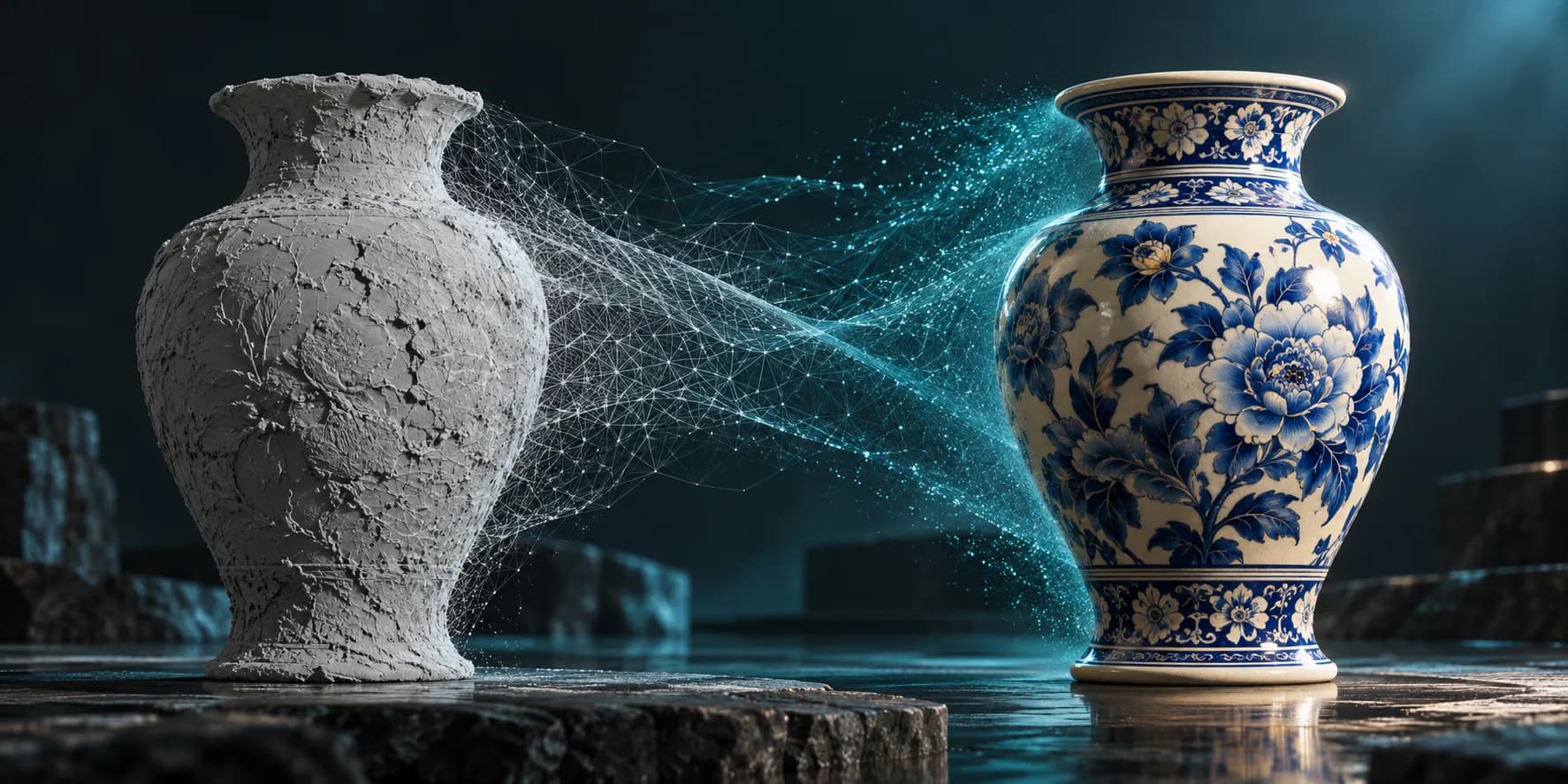
FeaturesTutorials
Upload and Enhance 3D Models with AI - Complete Guide 2025 | Magic 3D
Learn how to upload your own 3D models and enhance them with AI-powered texture generation, style effects, and format conversion. Transform GLB, OBJ, FBX, STL files with Magic 3D.
ToolsTutorials
Generator Font 3D: Ubah Tipografi menjadi Huruf Dimensi
Gunakan generator font 3D untuk menjelajahi tipografi dimensi untuk logo, judul, label produk, dan pemandangan. Pelajari struktur cepat, pemilihan font, dan pertimbangan ekspor.
ToolsTutorials
Generator Logo 3D: Jelajahi Konsep Logo Dimensi Tanpa Kehilangan Kontrol Merek
Gunakan generator logo 3D untuk grafik kampanye, adegan produk, dan konsep judul. Pelajari struktur cepat, materi yang dapat dibaca, dan kapan harus kembali ke logo vektor asli.
Buletin
Bergabunglah dengan komunitas
Berlangganan buletin kami untuk berita dan pembaruan terkini