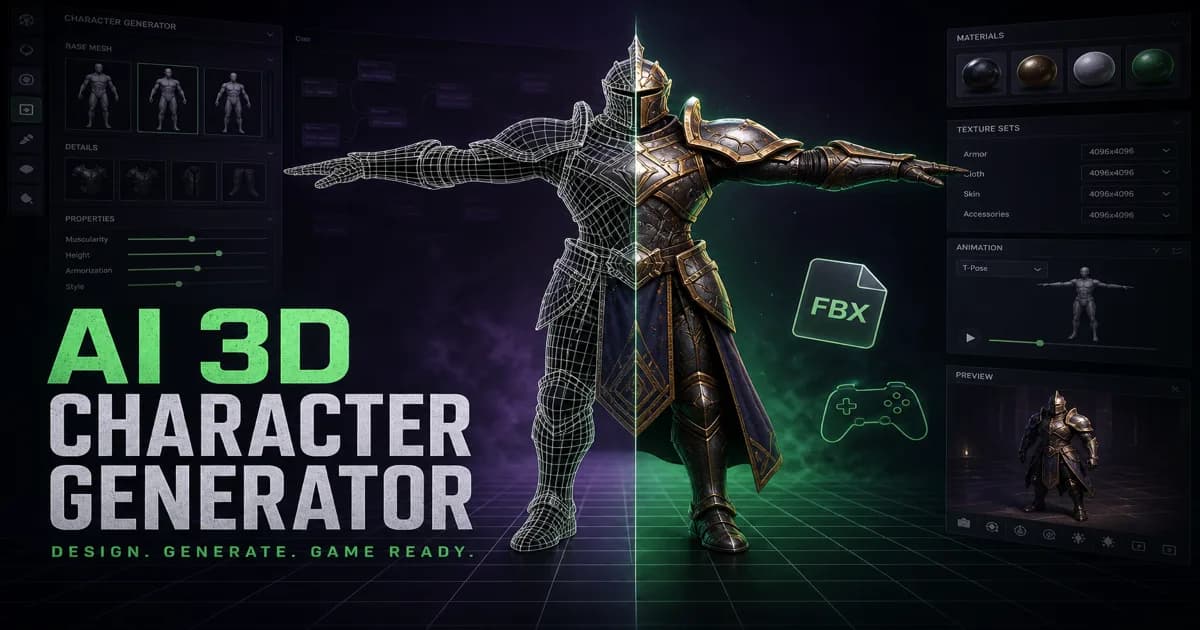
Image to Low-Poly 3D: Create a Stylized Model from a Reference Image
Use image-to-low-poly 3D workflows for stylized game assets and concept models. Learn how to prepare references, define the style, and optimize the result for its destination.
Image to Low-Poly 3D: Create a Stylized Model from a Reference Image
Image to low-poly 3D workflows turn a reference image into a simplified, stylized mesh. Low poly is not merely “fewer polygons”; it is a visual language built from deliberate planes, readable silhouettes, and economical details.
It is a useful direction for game prototypes, icons, stylized scenes, collectible concepts, and lightweight web assets. Begin with a clear image and state that the result should be low poly. Otherwise, a generator may aim for a more realistic mesh than your project needs.
Pick a reference with a clear silhouette
The best reference images isolate the subject from the background and show its main proportions. A simple toy, animal, prop, or character in a three-quarter view is easier to interpret than a crowded photo with multiple objects.
For an image-to-low-poly model, prepare:
- One primary subject
- Clear lighting and visible edges
- A plain or easily distinguishable background
- A pose with no important areas hidden behind other objects
- Permission to use the source image
Tell the generator what “low poly” means
Use a direct prompt such as: “stylized low-poly red fox, faceted planes, simple geometric fur shapes, clean silhouette, game-ready concept model.” Add the use case when it matters: mobile game prop, desktop scene, or printable figurine.
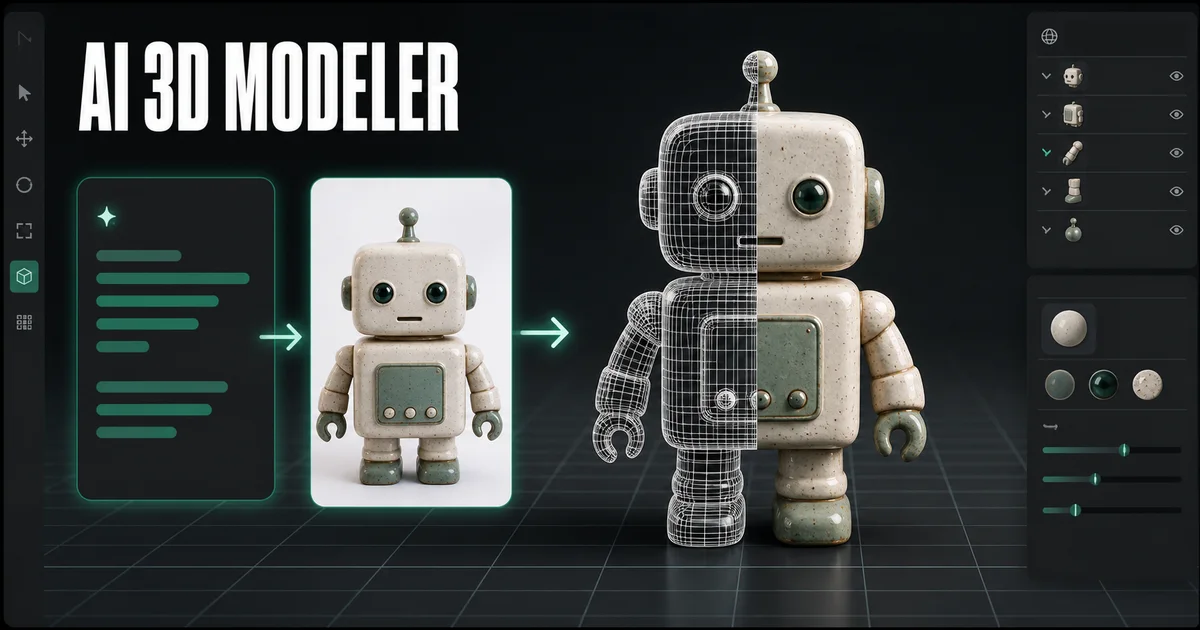
Generate the first model with Image to 3D, then inspect the result from several angles. The goal is not the lowest possible polygon number; it is a model whose silhouette and major planes communicate the subject clearly.
Optimize for the destination
For a game, use a controlled polygon budget, tidy UVs, and texture sizes that fit the target device. For web, prioritize fast GLB loading and test the model on mobile connections. For 3D printing, check manifold geometry and wall thickness; a faceted style does not remove print requirements.
| Destination | Main check |
|---|---|
| Mobile game | Polygon count and texture memory |
| Web viewer | File size and load time |
| Stylized render | Camera silhouette and materials |
| 3D print | Closed mesh, thickness, and supports |
Low-poly character versus low-detail output
A low-poly character is designed around visible planes and a coherent shape language. A low-detail output can simply look unfinished. To avoid the latter, specify a deliberate art direction, reduce unnecessary surface noise, and preserve the features that make the subject recognizable.
If the model will animate, plan for a cleanup pass. Character joints, hands, faces, and clothing often need artist-controlled topology even when AI provides a useful starting concept.
Can I make a low-poly 3D model from any picture?
You can generate a starting concept from many images, but results improve when the subject has a clear silhouette and minimal occlusion. Complex or hidden geometry still needs review.
Is low poly good for 3D printing?
It can be. The faceted aesthetic prints well when the mesh is closed and features are large enough. Check the model in a slicer before printing.
Which format should I export for a low-poly web model?
GLB is commonly useful for web delivery because it can package mesh and materials together. Test the final file size and rendering performance in the target viewer.
Start with a simple, clear reference, define the stylized direction, then refine the generated model for the platform where it will actually be used.
More Posts
3D Font Generator: Turn Typography into Dimensional Lettering
Use a 3D font generator to explore dimensional typography for logos, titles, product labels, and scenes. Learn prompt structure, font selection, and export considerations.
3D Logo Generator: Explore Dimensional Logo Concepts Without Losing Brand Control
Use a 3D logo generator for campaign graphics, product scenes, and title concepts. Learn prompt structure, readable materials, and when to return to the original vector logo.
Make a 3D Sculpture from a Photo: A Practical Image-to-3D Workflow
Turn a photo into a 3D sculpture concept with better reference images, realistic expectations, and essential checks for figures, busts, and printable keepsakes.
Newsletter
Join the community
Subscribe to our newsletter for the latest news and updates